 bmux
bmux· bmux guides
Keyboard-Driven Split Browsing with Vim-Style Navigation
Open links in split panes, switch pages from the keyboard, and save a bmux workspace. Add Vim-style navigation that preserves typing in text fields.
Walkthrough transcript
Keep your GitHub draft on the left and open the repository beside it. Double tap Option, press L for a right split, then type the link hint for Code. Control B, then O, switches panes. These optional J and K bindings scroll the page. G G returns to the top. Control B, then Z, expands the selected pane. Press it again to restore the split. The same letters still work inside a text field. The pane not editing condition keeps page navigation shortcuts from taking over while you type. Here, J and K remain ordinary text. With Vim editing enabled in General settings, press Control E inside the field. The inline editor starts in Normal mode. Use J to move down, C W to change a word, then type the replacement. Escape returns to Normal mode. Press Z Z to close the editor and return to the original field. Edits reach the page live. Closing the editor does not submit the form, although a website can autosave. Your reference remains beside the draft.
Introduction
To read a source and its reference side by side in bmux, double-tap Option, press l, then type the reference link's hint. The link opens in a split on the right. Add conditional Vim-style bindings for scrolling and search, and you can move through the pages while keeping ordinary typing in text fields.
A split screen browser solves the layout part of that task. Keyboard browser navigation covers the next steps: choosing a link, moving between panes, reading, and returning to a form. This guide compares the approaches, then builds a small workflow using bmux's native Click Mode, pane shortcuts, and optional page bindings.
Watch the walkthrough to open the repository beside a GitHub issue draft, navigate between panes, and edit the description with Vim.
Choose an extension, a Vim browser, or tab tiling
Start with the part of your current workflow that needs improvement. If you mainly want keyboard navigation in your existing browser, an extension may be enough. If you regularly compare pages, look at how the browser combines navigation with its split layout.
| Approach | Documented keyboard workflow | When to consider it |
|---|---|---|
| Vimium extension | Page scrolling, link hints, search, and tab navigation | You want Vim-style navigation in a supported browser you already use |
| Vieb browser | Vim-inspired commands, window splitting, and Ctrl-w bindings | You want browser interaction built around Vim conventions |
| Vivaldi tab tiling | Tile selected tabs using shortcuts or Quick Commands | You want side-by-side pages within Vivaldi's tab workflow |
| bmux panes | Native link hints open left/right splits or floats; configurable page keys apply outside editing fields | You want to open a reference beside the source and keep pane actions in the browser's keyboard configuration |
Vimium's official command list covers navigation and link hints. Vieb explicitly documents window splitting and Vim-compatible options. Vivaldi's tiling guide describes keyboard tiling and opening links as tiled tabs. These are documented approaches, not a speed or compatibility benchmark.
bmux's workflow combines native pane-opening actions with conditional page bindings. You can use its splits without enabling single-letter keys, and add only the navigation commands you need.
Open a link in a split pane
Try this with a documentation page that links to a reference you need to read alongside it. The activation shortcut below uses the documented Option default; change it in settings if another key suits your keyboard.
- Select the source pane and find a visible reference link.
- Double-tap Option to enter Click Mode.
- Press
lfor a right split, then type the hint beside the reference link. Usehinstead for a left split. - Press Control+B, then
o, to cycle to the next pane when you need to change focus. - Press Control+B, then
z, to expand the selected pane while reading. Repeat it to restore the split view.
Choose h or l before typing the hint. These actions show links only, so a button may disappear from the candidates. Hints depend on the current page state; read the displayed label each time.
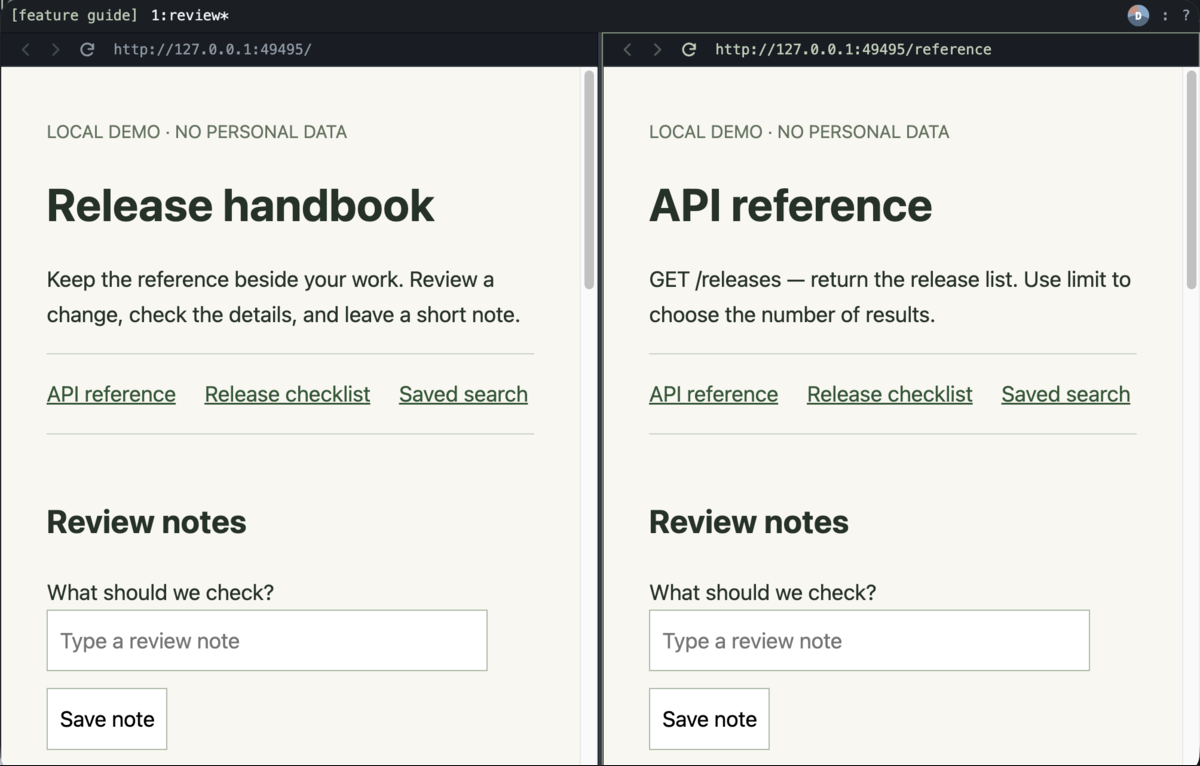 Keep the handbook and API reference side by side.
A split is useful when both pages remain part of the task. For a brief lookup, choose f before the hint to open a floating pane instead. The floating pane guide explains how to dock it later.
For a new side-by-side pane without following a link, press Control+B, then %. Control+B, then ", creates an above-and-below split. These prefix shortcuts are separate from Click Mode's link actions. The Click Mode guide covers hints and target selection in more detail.
Keep a split workspace for the next visit
Suppose you are comparing an API reference with a draft. Open the draft first, then use Click Mode to put the reference on the right. If you need a third page, select the reference pane and press Control+B, then ", to divide that side into an upper and lower pane. The draft stays on the left.
| Task | Default keyboard path |
|---|---|
| Open a blank side-by-side pane | Control+B, then % |
| Stack a new pane above or below | Control+B, then " |
| Cycle to the next pane | Control+B, then o |
| Expand the selected pane and restore its split | Control+B, then z |
| Find another session | Control+B, then s, and type its name |
| Open the workspace command prompt | Control+B, then : |
Save this arrangement when it is useful enough to repeat. In the command prompt, enter:
save-layout draft-and-referenceThe saved layout is a reusable arrangement of pages. To apply it later, select the internal window you want to replace, open the command prompt again, and enter:
restore-layout draft-and-reference --confirmRestoring replaces that window's pages, so finish any draft first. To return to a workspace that is still open, use the session picker instead. Switching sessions keeps their pages and layouts available; a layout restore creates replacement pages.
Name the session after the project with Control+B, then $. Use Control+B, then s, to switch away and find it again by name. A session organizes your work, while a profile holds the cookies and site storage used by its panes. Two project sessions can share the same login through a profile.
Detaching a client leaves the live session running. Quitting stops the browser; reopening restores saved URLs and layouts, rather than unsaved form text or arbitrary JavaScript state. Keep drafts in the website's own save flow. The workspace model explains sessions, windows, panes, and profiles.
The CLI starter walkthrough takes the next step: create a background profile, target a pane from the terminal, and watch a worker beside your own pages.
Why a global binding can interfere with a website
A single-letter shortcut is convenient on a document and disruptive in a text box. If every j means “scroll down,” you cannot type ordinary words containing that letter.
pane-not-editing applies a shortcut only while the selected page has focus outside editable fields. The address bar, browser prompts, website inputs, and editable page content retain their normal keyboard behavior.
If bmux cannot determine focus safely, it does not intercept the conditional shortcut. That includes unknown focusable controls and closed shadow roots. Selecting ordinary page text does not itself count as editing.
Choose direct keys, prefix bindings, or Click Mode
| Mechanism | Example | Useful for |
|---|---|---|
| Conditional direct shortcut | j scrolls outside an input |
Frequent page actions |
| Multi-key sequence | gg goes to the top |
Familiar ordered key combinations |
| tmux-style prefix | Control+B, then % |
Workspace actions such as splitting |
| Click Mode | Option twice, then a hint | Activating a visible page target |
Vimium's command list is a useful comparison for readers accustomed to keyboard browser navigation. bmux's bindings map keys to its own actions; they are not a full Vim editing language or a claim of extension compatibility.
Keep workspace actions on the prefix when you want a clear separation from typing on the page. Use Click Mode for links and buttons. Direct page bindings are most useful for actions you repeat while reading.
Add scrolling, reload, and search
Open settings with Command+, and edit ~/.config/bmux/config.yaml. Merge this example into the existing keyboard mapping. Avoid creating a second keyboard key or deleting unrelated bindings.
keyboard: shortcuts: j: { action: scroll-down, when: pane-not-editing } k: { action: scroll-up, when: pane-not-editing } d: { action: scroll-half-down, when: pane-not-editing } u: { action: scroll-half-up, when: pane-not-editing } Shift+G: { action: scroll-bottom, when: pane-not-editing } r: { action: reload, when: pane-not-editing } Shift+R: { action: hard-reload, when: pane-not-editing } /: { action: find, when: pane-not-editing } sequences: gg: { action: scroll-top, when: pane-not-editing }The settings reload automatically. You do not need to restart the browser. Two-letter sequences use prefixTimeoutMs as the allowed interval between letters; the default is 1.6 seconds.
If you only want scrolling, start with j, k, and gg. Reload bindings can discard page work just as the ordinary reload button can. Add them when their convenience fits your workflow.
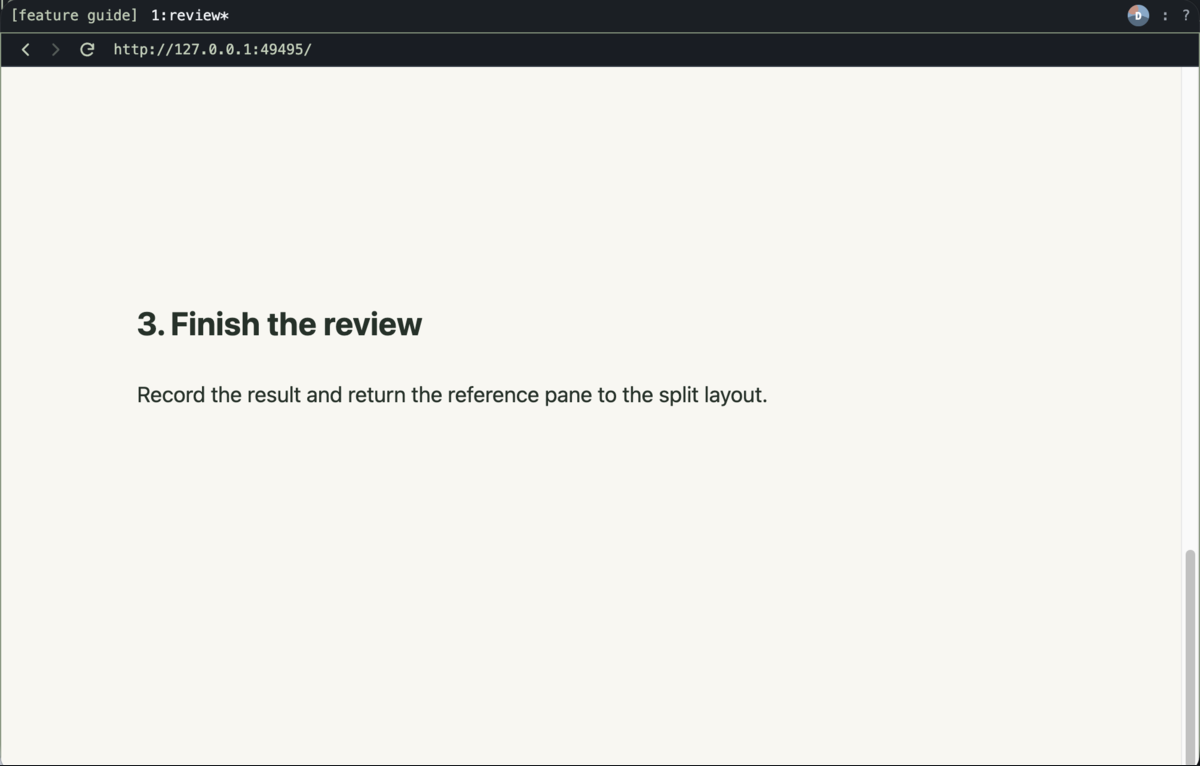 Shift+G moves to the bottom of the page.
gg returns to the beginning. This is useful for long reference documents where scrolling is a repeated part of reading.
Check the binding where you actually type
Try the keys on an ordinary page, then click a search or notes field and type the same letters. Also test the address bar and any web editor you use frequently.
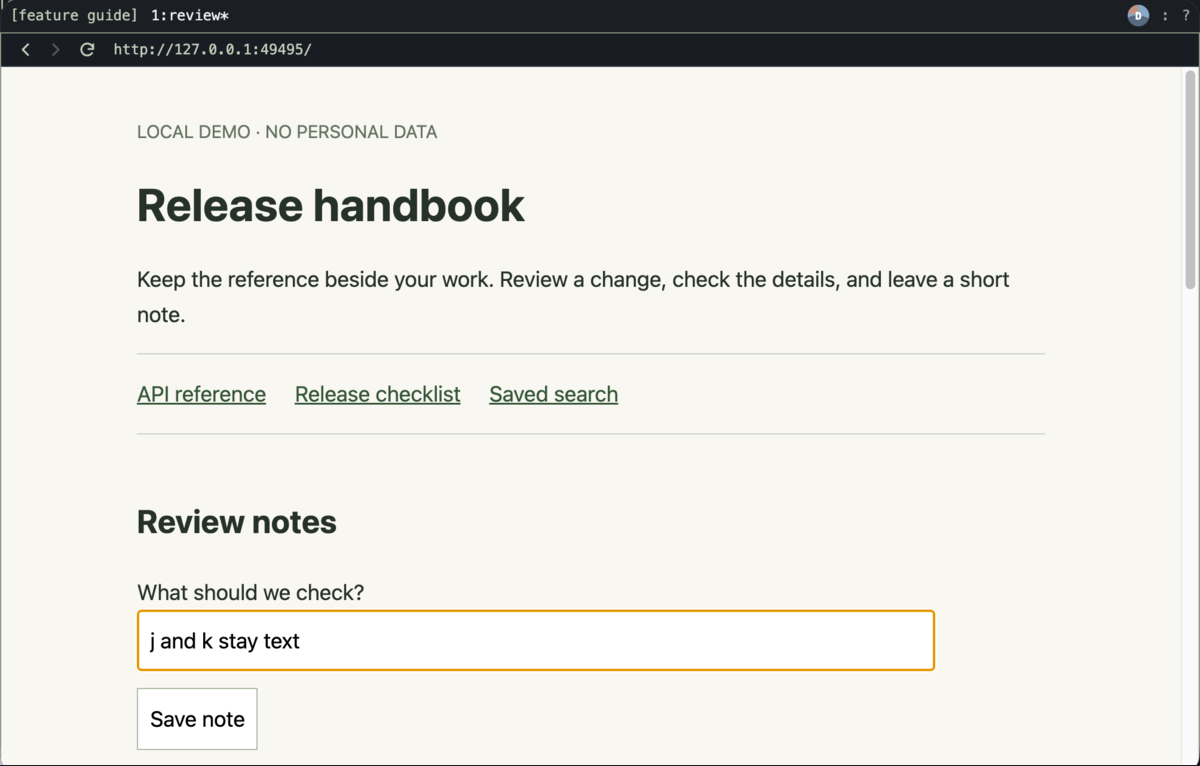 Type normally in text fields with conditional bindings.
The context condition lets the same letters work as page commands and ordinary text.
Website shortcuts outside editable fields can still conflict. Configured bmux shortcuts take precedence, so pane-not-editing does not automatically resolve every application's keyboard convention. Remove or remap a binding if a site uses it for an action you prefer.
Edit the draft with inline Vim mode
Page navigation and text editing have separate controls. Conditional j and k bindings leave a website field alone. When you want Vim commands inside that field, enable Vim editing in General settings, focus the field, and press Ctrl+E. The inline editor takes its place in the page layout and starts in Normal mode.
In the walkthrough, the GitHub repository stays on the right while the issue description becomes an editor on the left. The draft has three lines. gg0j moves to the beginning of the second line, cw changes its first word, and typing Confirm replaces Check. Escape returns to Normal mode; ZZ closes the editor and returns to the original website field.
| Context | What j does |
How to leave it |
|---|---|---|
| Page content with the optional binding | Scrolls the active page down | Focus a text field |
| Ordinary website text field | Types the letter j |
Press Ctrl+E to open the editor |
| Inline editor, Normal mode | Moves the cursor down one line | i enters Insert mode; ZZ saves and closes |
| Inline editor, Insert mode | Types the letter j |
Escape returns to Normal mode |
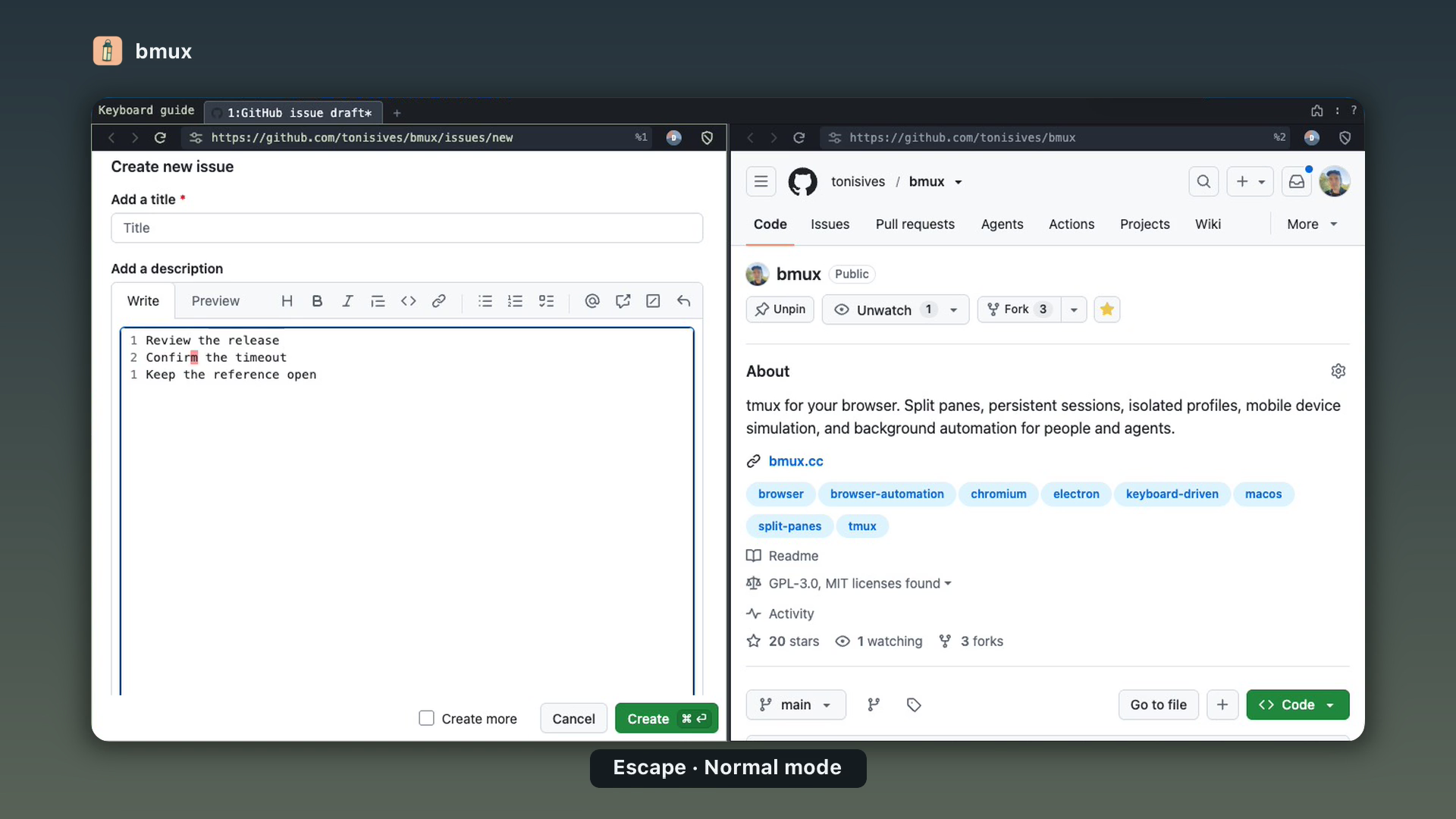 Edit a GitHub draft in place with Vim commands.
Edits reach the original field live, so site character counts and autosave may run while you work. Closing the editor does not submit the website form.
Use native editing for passwords and unsupported fields. Rich-text drafts contain plain text; embedded media and formatting are outside the Vim draft. The 0.1.9 release article explains the editor's save checkpoints and limitations, including the 0.1.10 initialization fix. Install 0.1.10 or newer for this workflow.
Adapt the configuration
Use the action names from the keyboard reference with keys comfortable on your keyboard. You can use several shortcuts for the same action. Set a particular binding to null to disable it.
Conditional bindings also work for pane actions. For example, a conditional Command+Z binding can zoom the selected pane while retaining Undo in text fields:
keyboard: shortcuts: Cmd+Z: { action: toggle-pane-zoom, when: pane-not-editing }This is an optional remapping, not the default Command+Z behavior. Keep only bindings whose meaning you will remember outside an input.
Vim navigation FAQ
Can I use split panes without Vim bindings?
Yes. Click Mode and the default pane prefix shortcuts work independently of the optional j, k, and gg configuration. Start by opening one reference beside your source, then add page keys if scrolling is the repetitive part.
Are these keys enabled by default?
No. The single-letter page bindings in this article are an example configuration. Add the ones you want.
Why does a key sometimes do nothing?
Check focus first. The active element may be editable, an unfamiliar focusable control, or browser UI rather than page content. The conditional action deliberately leaves those contexts alone.
Why does gg fail when I pause?
The second g must arrive within the configured sequence timeout. Adjust prefixTimeoutMs if necessary, remembering that it also controls the tmux-style prefix interval.
Do I need an extension?
No extension is needed for these bmux actions. Combine a small set of conditional navigation keys with native Click Mode and the normal workspace prefix. That gives each part of browsing a predictable keyboard path.
Try one reference beside your source
Start with two pages you already compare. Open the reference using Option twice, l, and its hint. Cycle panes with Control+B, then o. Once the layout works for you, add j, k, and gg, then check them in a text field before adding more bindings. Enable Vim editing when you also want to revise that field with motions and operators.
Install bmux to try the workflow. Keep the keyboard reference nearby for the complete action names and configuration options.