 bmux
bmux· bmux guides
Browse Without the Mouse: A Practical Guide to bmux Click Mode
Use native keyboard hints to click page targets and open links in bmux floating panes or splits, with configuration tips and FAQs.
Walkthrough transcript
Double-tap Option to show click hints. Choose f before typing the link hint. The selected link opens in a floating pane.
Introduction
Double-tap Option to place keyboard hints over clickable elements in the selected bmux pane. Type a hint to activate its element. For a link that should open beside your work, choose a pane action first: f for a float, h for a left split, or l for a right split.
Native Click Mode arrived on September 19, followed by link actions for panes. It runs inside bmux without a browser extension or macOS Accessibility permission. The walkthrough above shows a real hint selection and a floating-link action using local pages in Tart.
Click Mode, Tab navigation, and extensions compared
| Approach | Useful when | What to consider |
|---|---|---|
| Tab and Shift+Tab | Moving through a form or a short row of controls | You follow the page's focus order |
| bmux Click Mode | Selecting a visible target or opening a link in a pane | Hints cover web content, not bmux dialogs |
| A keyboard extension such as Vimium | Using its navigation commands and configuration in a supported browser | It is a separate extension with its own scope and bindings |
Vimium's command reference documents link hints and navigation commands. That is useful context for the idea, but bmux does not claim complete Vimium compatibility. Its distinguishing workflow here is opening hinted links directly into bmux floats and splits.
Keep Tab navigation for a form with a sensible focus order. Click Mode is most helpful when the target is visible but reaching it sequentially would be awkward.
Start with an ordinary click
Select the pane you want to use, double-tap Option, and read the hint beside the target. Type the hint characters in order. Backspace removes the last character; Escape closes the mode.
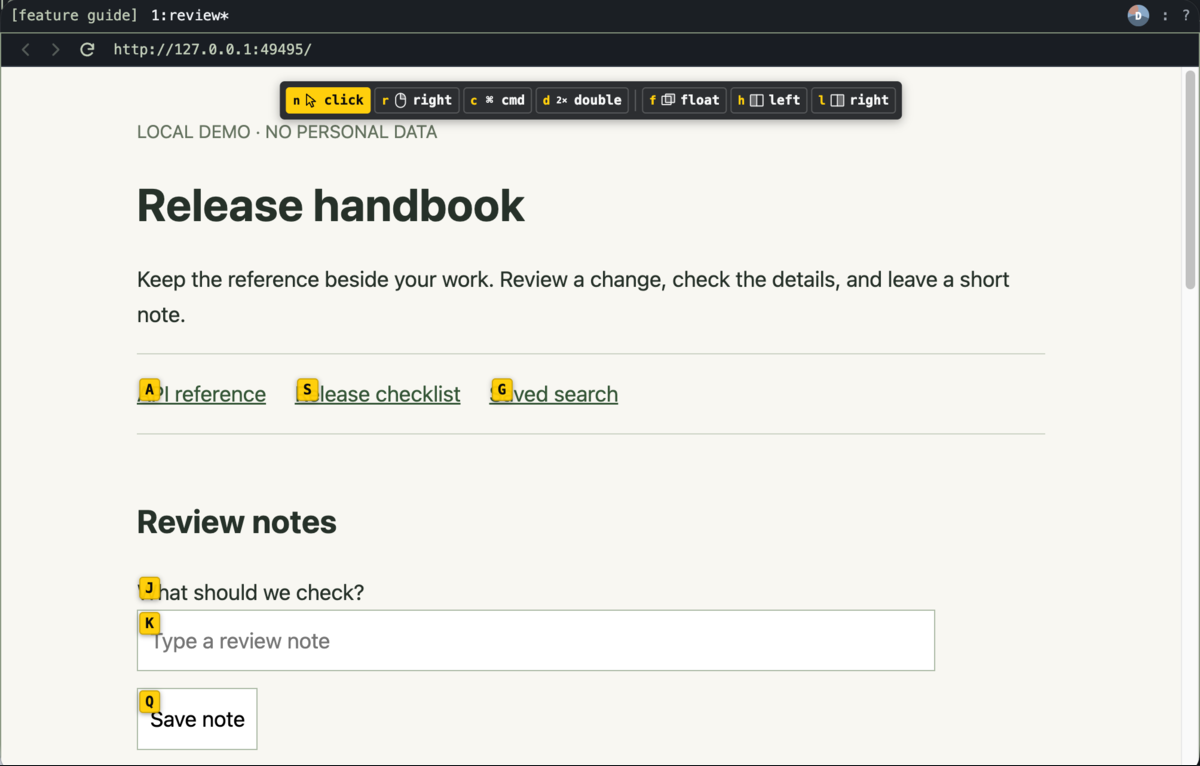 Native bmux Click Mode captured in Tart. The hints belong to a local fixture page, not to the browser status bar.
The hints in this capture give visible targets a short keyboard address. They are generated for the current page state. Do not memorize a particular label or expect it to identify the same element after navigation.
Click Mode also works with page frames. It does not place hints over the status bar, bookmark picker, settings, or other bmux dialogs. Use their normal shortcuts and keyboard selection controls.
Choose the click action before the hint
| Key | Action |
|---|---|
r |
Right-click the target |
c |
Command-click the target |
d |
Double-click the target |
n |
Return to an ordinary click |
f |
Open a link in a floating pane |
h |
Open a link in a split on the left |
l |
Open a link in a split on the right |
The f, h, and l actions filter the candidates to links. Choose the action before entering its hint. A button can be a normal click target without being a destination that can open in another pane.
Right-click and double-click send those actions to the selected target. Their outcome still depends on the page. For example, a site may handle a context-menu event itself. Command-click likewise depends on what the selected control supports.
Open a reference beside your work
On a page containing an API reference link, double-tap Option, press f, then type the reference's hint. The source page stays available while the destination opens in a float.
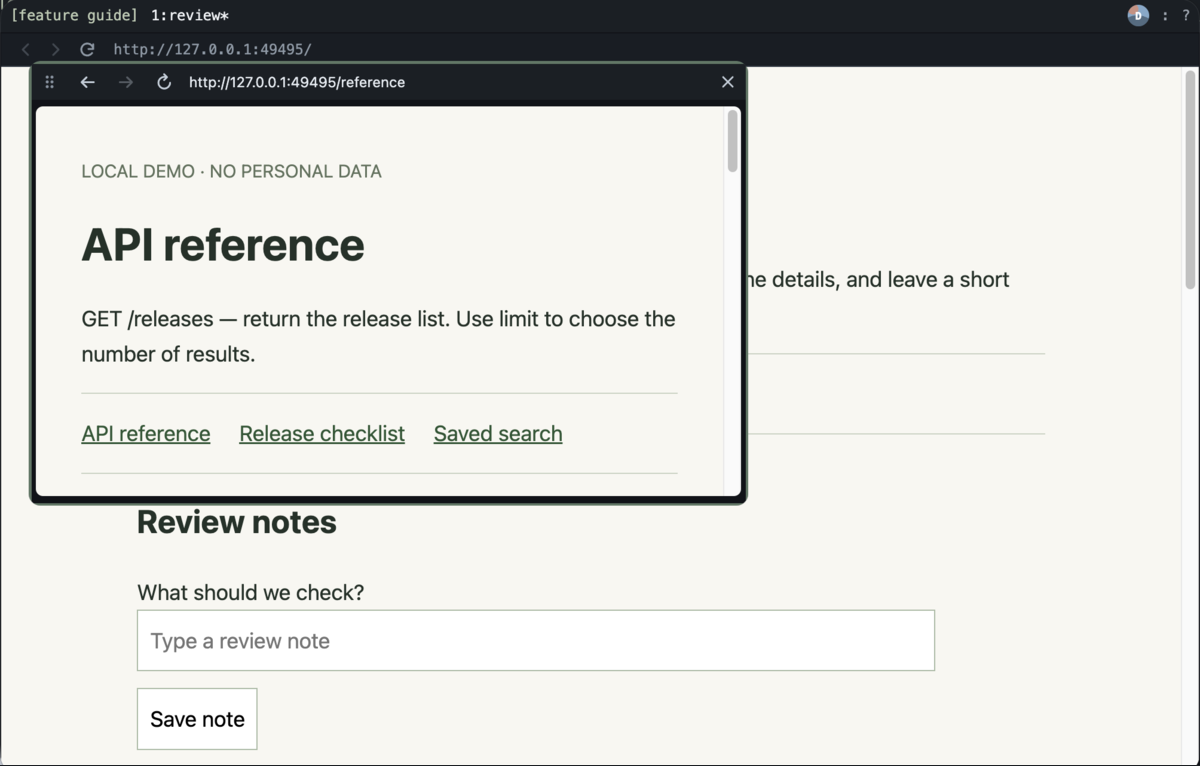 Result of the hint action in Tart. This demonstrates pane creation, not a page-load speed measurement.
Use h or l instead when you know the reference will remain part of the task. The floating versus split guide explains that layout choice and how to dock a float later.
Customize activation and appearance
Settings live in ~/.config/bmux/config.yaml and reload automatically. Merge the values you want into the file rather than replacing unrelated settings:
clickMode: enabled: true doubleTapModifier: Option showInput: true fontSize: 14 opacity: 0.95The activation setting also accepts Command, Control, Shift, Escape, or null. Use the click-mode keyboard action if you prefer an explicit shortcut or prefix binding.
If you customize hintCharacters, use unique letters or digits. The click-action keys r, c, d, and n are reserved. Link-action keys f, h, and l are excluded from hints even if an older configuration contains them. The keyboard reference lists the complete settings.
Click Mode FAQ
Is this the same as Vim scrolling?
No. Click Mode selects targets. The separate Vim navigation configuration adds page scrolling, reload, and search bindings outside editable fields. You can use both.
Why does a target have no hint?
Check that you selected the intended pane and that the target is visible. If you chose a pane action, only link candidates are shown. Browser UI and controls that the page does not expose as supported clickable targets are outside the mode's coverage.
What if I type the wrong hint?
Use Backspace to correct it or Escape to start again. For a pane action, restart with the action key before typing the link hint.
When should I keep using the mouse?
Use it whenever it is the clearer interaction, such as resizing a floating pane or manipulating a page-specific canvas. Click Mode gives ordinary page targets and pane-opening actions a keyboard route; it does not need to replace every pointer gesture to be useful.