 bmux
bmux· bmux guides
Browser Automation from the CLI with Persistent Profiles
Automate a browser from the bmux CLI: inspect pages, type, click, and save screenshots. Reuse a persistent profile and add a worker with separate storage.
Introduction
Use the bmux CLI to open a browser pane, read its DOM, click a link, and save a screenshot. Give the pane a named background profile to keep its site storage between visits. You can watch the same page in bmux while the shell controls it.
This walkthrough uses a local sample page with a remembered account label. You will verify that a second pane using the same profile sees that label, while a worker with another profile starts fresh. The label demonstrates persistent site storage; it is not a real sign-in. For a website account, sign in manually once in the profile you intend to reuse.
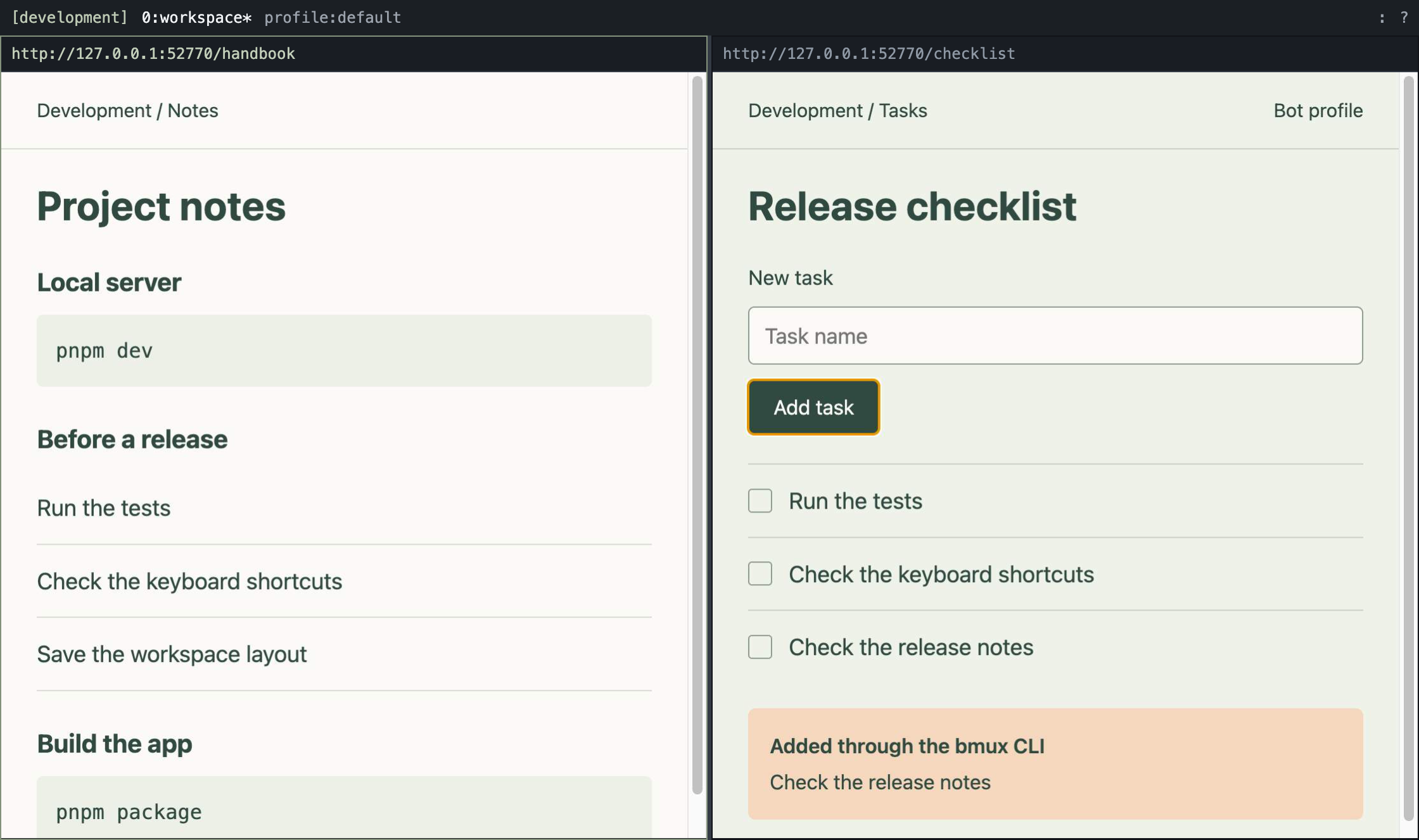
The screenshot above shows an earlier local demonstration: the CLI added a task in the right pane while the reference stayed on the left. The sample below uses a smaller page so you can repeat each step yourself.
Install the CLI and prepare the sample
Install bmux and make its bundled bmux command available on your PATH. The CLI requires Node.js 22.12 or newer; Node 24 is recommended. These examples use a macOS or Linux shell, curl, jq, and Python 3 for the local server. Linux hosts also need the display setup in the hosting guide.
On macOS, the Homebrew installation is:
brew install --cask tonisives/tap/bmuxbmux --helpCreate a temporary directory and download the sample page. In this first terminal, start a server bound to your machine:
demo_dir=$(mktemp -d)curl -fL https://bmux.cc/examples/browser-automation-cli.html \ -o "$demo_dir/index.html"python3 -m http.server 8765 --bind 127.0.0.1 --directory "$demo_dir"Keep that terminal running. Use a second terminal for all the following commands. If port 8765 is occupied, choose another port and change the sample URLs below to match. Keep the same host and port when checking stored state; browser storage belongs to an origin.
Create a background profile and find the pane
Set an agent ID in the second terminal. BMUX uses it to identify the caller of browser commands. Then create a profile and session with names reserved for this tutorial:
export BMUX_AGENT_ID=cli-tutorialexport BMUX_AGENT_NAME='CLI tutorial'bmux profile create cli-tutorial --backgroundbmux new-session -s cli-tutorial --profile cli-tutorialpane=$(bmux list-panes -t cli-tutorial:1 | jq -r '.result[0].id')Use unused names if you already have a cli-tutorial profile or session. A background profile keeps inactive pages running. The normal default profile throttles inactive pages.
| Object | What it does in this example |
|---|---|
Profile cli-tutorial |
Holds this sample's cookies and site storage |
Session cli-tutorial |
Groups the tutorial's windows and pane layouts |
Window cli-tutorial:1 |
Selects the first internal window for pane discovery |
Variable pane |
Holds the explicit pane ID returned by list-panes |
Commands return JSON with ok and result; errors return ok: false and a nonzero exit status. Inspect each response before continuing. Keep a returned pane ID while that pane exists; after closing or replacing pages, discover the new IDs again.
To see the workspace, attach a desktop client. This command intentionally opens a bmux window:
client=$(bmux attach-session -t cli-tutorial | jq -r '.result.id')Navigate, inspect, type, and click
Navigate the pane and wait for a visible element before inspecting it:
bmux navigate -t "$pane" http://127.0.0.1:8765/bmux wait -t "$pane" --selector '#account' --state visiblebmux dom -t "$pane"The DOM response includes the account field, the remember button, and a report link. Use those selectors to enter a sample label and save it:
bmux type -t "$pane" --selector '#account' --text 'Sample reader'bmux click -t "$pane" --selector '#remember'bmux wait -t "$pane" \ --expression 'document.querySelector("#account-status").textContent === "Remembered account: Sample reader"'bmux click -t "$pane" --selector '#report-link'bmux wait -t "$pane" --selector '#report' --state visiblebmux dom -t "$pane" | jq -r '.result.content'bmux screenshot -t "$pane" --output ./bmux-report.pngThe extracted text should include Weekly report and Remembered account: Sample reader. The screenshot command writes bmux-report.png to the current shell directory. type inserts text, so use an empty field for the first run. On a real page, inspect its current DOM before choosing selectors, and wait for the result of an action before the next step.
Navigation, DOM reads, clicks, and screenshots target the supplied pane without selecting another desktop window. You can read another pane while this one works.
Verify profile reuse and add an independent worker
Open another pane with the same profile and sample origin:
shared=$(bmux split-window -t "$pane" -h --profile cli-tutorial \ --url http://127.0.0.1:8765/ | jq -r '.result.id')bmux wait -t "$shared" \ --expression 'document.querySelector("#account-status")?.textContent === "Remembered account: Sample reader"'The new pane reads the remembered label from the profile's site storage. Using the same profile is also how you reuse a website login, while that website's session remains valid.
Create a separate background profile for an independent worker:
bmux profile create cli-tutorial-worker --backgroundworker=$(bmux split-window -t "$shared" -v \ --profile cli-tutorial-worker --url http://127.0.0.1:8765/ \ | jq -r '.result.id')bmux wait -t "$worker" \ --expression 'document.querySelector("#account-status")?.textContent === "No remembered account"'You now have two panes sharing one profile and a third with separate storage. Each loaded pane keeps its profile. Choose the intended profile when creating a worker; creating another session alone does not separate its logins. The profiles guide covers connection settings and device presets.
Other browser CLIs also distinguish temporary from persistent state. For example, Playwright CLI's profile modes include persistent and custom profile directories. In bmux, you select a named profile when creating the pane and can monitor its work in the same split workspace.
Detach, return, and clean up
Detach the client you opened, then reattach to the session:
bmux detach-client -c "$client"client=$(bmux attach-session -t cli-tutorial | jq -r '.result.id')Detaching leaves the pages running. Quitting stops the browser. On restart, bmux reopens saved URLs; normal profile cookies and site storage persist, while unsaved forms and JavaScript memory are not reconstructed. A website can still expire a login. This sample's remembered label uses local storage, so it can be read again after a browser restart on the same origin.
When finished, close only the tutorial session and detach the client you created:
bmux kill-session -t cli-tutorial --confirmbmux detach-client -c "$client"Stop the sample server with Control+C in the first terminal. The two tutorial profiles remain available for another run; choose fresh names for a clean comparison. No command above quits your other bmux sessions.
For the complete action reference, continue with the CLI and agent guide. For the keyboard side of the same workspace, try split browsing with Vim-style navigation.