 bmux
bmux
A browser for people and agents #
tmux for your browser. Split your work into panes, keep a workspace for each project, and give agents a browser you can see. bmux uses Chromium, with isolated profiles and a CLI for background browser automation.
Website · Download · Get started · Build from source · Automation guide
bmux is an early preview, free under the GNU GPL version 3. The original MIT notice is retained for code previously distributed under MIT. macOS releases are Developer ID signed and notarized. It does not require tmux.
Features #
Browser multiplexer #
Split pages horizontally or vertically, keep references in floating panes, and save layouts to use again. Each pane has its own address bar and a fixed profile. Browse with a tmux-style prefix, scroll mode, and native click hints. Page content sits above one status bar; controls appear when needed.
Two split browser panes with Google Cloud pages and a floating documentation reference above them
Watch the walkthrough · Keyboard shortcuts · Floating panes
Switch sessions #
Keep a named workspace for each project, research task, or agent workflow. Switch sessions to return to your pages and layout. Detach a client while its pages keep running, then reattach to the same live pages and form state.
Agentic browsing #
Control a specific pane from the shell: navigate, inspect the DOM, run JavaScript, click, type, and capture screenshots. Commands return JSON and run without taking your focus. Watch several agents in split panes, with separate profiles for their logins and a background profile to keep each worker's pages running.
Four independent browser panes with the commands controlling them visible below
Watch the walkthrough · CLI and agent guide
Simulate mobile devices #
Choose a Pixel, Galaxy, or iPhone preset for a pane and browse its mobile layout. Presets apply viewport dimensions, device pixel ratio, touch input, and browser identity settings. Switch orientation or customize the size, locale, timezone, and optional geolocation. The engine remains Chromium, including with an iPhone preset.
MDN documentation displayed inside a simulated phone in bmux
Watch the walkthrough · Device presets and profiles
Automated scraping #
Give each worker its own background profile, HTTP/HTTPS or SOCKS5 proxy, and optional device preset. Use the CLI to scroll, read pages, and follow links while monitoring workers together. Connection settings and device presentation are independent. Run browser hosts on Linux and connect through the web viewer or desktop Remote sessions picker.
Four simulated mobile devices browsing separate pages, with worker commands underneath
Watch the walkthrough · Configure a proxy · Remote hosting
Built-in plugins #
- Find pages again — Search profile-scoped history, save bookmark folders in YAML, or import profiles and bookmarks from a Chromium browser. See Bookmarks and Import from Chrome.
- Live configuration — Customize keyboard bindings in YAML without restarting the app. See Keyboard.
- Page tools — Ad/tracker blocking, Dark Reader, encrypted saved forms, Bitwarden browser extension, and local userscripts. See Built-in plugins.
- Script plugins — Add local actions and page hooks in any language, with DOM access and native prompts. See Plugin authoring.
Get started #
On macOS, install the latest release with Homebrew:
brew install --cask tonisives/tap/bmux
The latest GitHub release also provides macOS Apple Silicon and Intel DMGs, a Windows x64 desktop installer, and Linux x64 and arm64 portable host archives. See Remote hosting for Linux host setup.
macOS releases are Developer ID signed and notarized. Installed release builds check for updates at startup and daily, download them in the background, and apply them when you quit. Use bmux > Restart to Update to restart sooner, or turn off Automatically Check for Updates in that menu. See macOS launch troubleshooting for the v0.1.3 damaged-bundle error. The bundled bmux CLI requires Node.js 22.12+ (Node 24 recommended).
To run from source, install Node.js 22.12+ and pnpm 11:
git clone https://github.com/tonisives/bmux.git
cd bmux
pnpm install --frozen-lockfile
pnpm dev
See Packaging for build artifacts and platform notes. Add this checkout's bin directory to your PATH to use bmux from any terminal, or run ./bin/bmux directly.
Try Control+B, then % to split a pane, s to switch sessions, or ? for help. See Keyboard for more shortcuts.
Model #
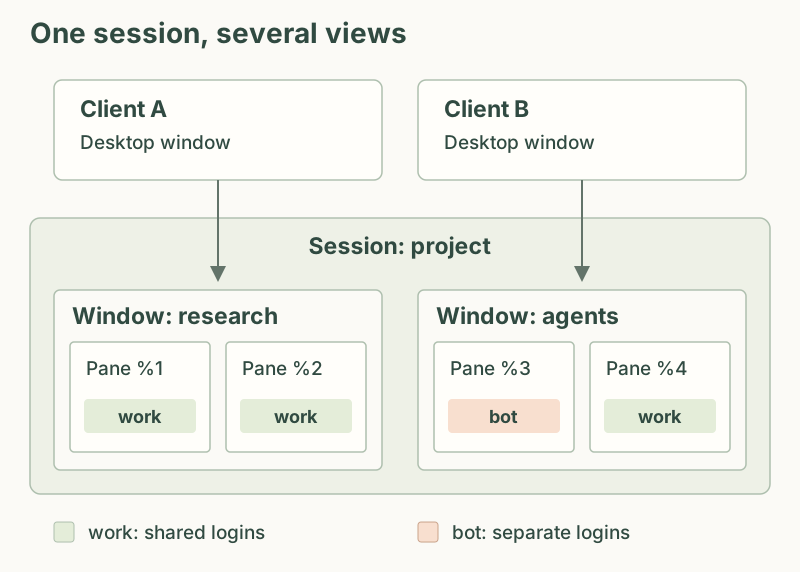
A session holds internal windows; each window contains split and floating panes. Desktop windows are clients attached to a session, each with its own selected internal window.
Right-click a window tab and choose Lock Viewport to keep each pane at its current size across client and window resizes. Smaller panes scroll the fixed content. Scrolling over the page keeps normal browser behavior, including Shift + mouse wheel for horizontal scrolling. Hold Shift while scrolling in the empty space around the page to pan the outer viewport. Use Unlock Viewport to resume automatic sizing. The colon commands :lock-viewport and :unlock-viewport also accept -t WINDOW; the lock is saved with the session.
| Term | Meaning |
|---|---|
| Profile | Persistent cookies, site storage, cache, and permission choices |
| Session | Named collection of internal windows |
| Window | Named layout of browser panes |
| Pane | One browser page with a fixed profile |
| Client | A desktop window attached to a session |
Profiles are independent of layouts. Panes using the same profile share logins; a pane's profile stays fixed.
Detach leaves pages running. Quit stops the browser. Restarting reopens saved URLs, but does not restore unsaved forms or JavaScript state.
See session and client behavior, profiles, and floating pane commands.
Development #
Requires Node.js 22.12+ (Node 24 recommended) and pnpm 11. On macOS, install Xcode Command Line Tools for the native pointer integration. See Platform notes for host-specific requirements.
pnpm install --frozen-lockfile
pnpm dev
The renderer reloads during development. Browser content runs sandboxed, without Node integration or a privileged preload. The application interface has a narrow IPC bridge.
See the roadmap for the development backlog and recently completed work.
The product website is at bmux.cc. Its source and deployment are maintained separately from this browser repository.
Build and launch locally:
pnpm build
pnpm start
On macOS, build an application bundle in build/bmux.app:
pnpm package
Use BMUX_OUTPUT_DIR to choose another output folder. Packaging does not restart a running app. See Packaging for signing, installation, and other platform artifacts.
Use the repository CLI without a global installation:
./bin/bmux.mjs --help
./bin/bmux.mjs status
./bin/bmux.mjs attach-session -t main
Optionally add this checkout's bin directory to PATH; the bmux wrapper invokes the CLI. Browser commands silently start the server when needed. attach-session and activate-client intentionally show a client; navigation and screenshot commands do not. Activating an already-focused client preserves its focused page, text caret, or prompt.
Basic workflow #
bmux profile create work
bmux new-session -s project-a --profile work
bmux attach-session -t project-a
bmux list-windows -t project-a
bmux list-panes -t <window-id>
bmux split-window -t <pane-id> -h --profile bot
bmux new-window -t project-a -n monitoring
bmux select-window -c <client-id> -t <window-id>
bmux select-layout -t <window-id> tiled
bmux select-layout -t <window-id> even-horizontal
bmux maximize-pane -t <pane-id> height
bmux save-layout -t <window-id> -n development
bmux restore-layout -t <window-id> -n development --confirm
For list-panes, you can also use a session name and one-based window index, such as bmux list-panes -t main:5.
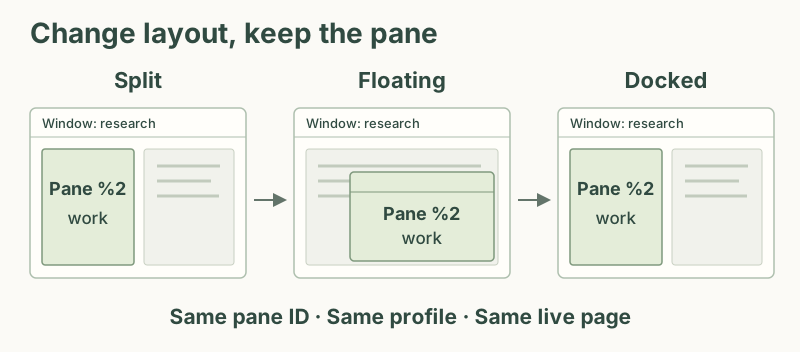
CLI output is JSON: { "ok": true, "result": ... }. Errors use ok: false, an error message, and a nonzero exit code. Browser actions require an explicit pane ID; list-panes and pane creation commands return those IDs. New panes use short numeric IDs such as %1, and closing a pane makes its number available again. Keep an ID only while its pane exists. An open pane's ID stays stable across view transfers and session restarts. A page reload or process crash can reset JavaScript state while the pane ID remains the same.
The default profile throttles inactive pages. The bot profile keeps background pages running. Additional bot profiles can be created using profile create NAME --background. A bot profile is a browser storage partition with a background-execution policy, not an OS user account or an authorization boundary against the local CLI.
Use bmux memory to inspect process memory and its pane/profile associations, or
bmux memory --history to inspect recent growth. See memory diagnostics
for sampling, units, and shared-process accounting.
Guides #
- Floating panes and docking
- Profiles, proxies, and device personas
- Keyboard shortcuts and configuration
- Bookmarks and YAML storage
- Import profiles and bookmarks from Chrome
- Downloads
- Built-in plugins
- Plugin authoring
- Browser automation
- Remote hosting and access
- Packaging
- Platform notes
Data and permissions #
Application state and profile partitions use the platform's application-data directory. Set BMUX_DATA_DIR to an absolute path to run an isolated instance. Tests use disposable directories and never use your real profiles.
Bookmarks live in ~/.config/bmux/bookmarks.yaml, alongside keyboard settings. See Bookmarks for the format and migration details.
Layouts, profiles, open URLs, zoom, and client selections are persisted. Relaunching reopens pages; it does not reconstruct arbitrary JavaScript memory or unsaved forms. Named layout restoration replaces a window's pages and requires confirmation.
Permission requests appear in the focused window without taking focus from the page. Decisions are saved by profile, origin, and permission. Manage pending requests in Activity or with permission list and permission respond.
The control socket is accessible only to the current OS user. No network debugger port is exposed by default. See Browser automation for CLI usage.
Current boundaries #
Local script plugins are available through the plugins command and bmux plugin CLI. They are explicitly enabled in YAML and run with your OS privileges.
Experimental Chrome extension support, including Bitwarden installation, is described in Browser extensions. External Chrome/Brave embedding and cloud synchronization are not supported. Website recoloring, ad blocking, and stored fills are described in Built-in plugins. Website JavaScript alert, confirm, and prompt use native dialogs with protection against repeated dialogs; permission requests use bmux's Activity flow. Full-page screenshots capture the currently rendered document; lazy content may require scrolling first. Pages exceeding 80 megapixels require a viewport capture or an explicit CDP clip.
Do not expect Electron to provide every Chrome feature: DRM media, platform authentication integrations, and sites that reject embedded browsers may require additional work.
To make bmux your default browser, open Settings with Cmd+, in the installed
app and choose Make bmux the default browser. Confirm the macOS prompt if
shown. You can also select bmux in System Settings > Desktop & Dock > Default
web browser. Links from other apps open in a new internal window in the active bmux session.
Pane layouts use the configured prefix followed by = for a balanced grid, _
for 95% height, | for 95% width, Alt+1 for equal columns, or Alt+2 for equal
rows. Layouts preserve pane order and floating panes. Prefix bindings accept
literal characters and key combinations such as Alt+1.