 bmux
bmux· bmux guides
Social Media Scheduling with bmux: Scripts First, AI Optional
Schedule social posts with reusable scripts, bmux profiles, and ClawTab. Run manually or automatically, with Android browser simulation and optional AI help.

Introduction
You can build a social posting workflow around bmux with ordinary scripts. Write one script per platform, run it manually when needed, or let ClawTab, cron, or another scheduler launch it. bmux provides the browser interface. AI is optional: a working script does not need an agent or model tokens for each post.
The idea came from DeepakNess's introduction of CogSend, an open-source social media scheduler that can run on Cloudflare. His post lists X, Threads, LinkedIn, Mastodon, and Bluesky. That prompted a useful question: how much of the same workflow can we assemble with scripts and the browser we already use?
bmux is free and open source. It exposes browser commands to scripts and agents, with separate company profiles, optional Android browser personas, and per-profile proxy settings. You supply the posting scripts and schedule. Hosting, proxy service, and platform API access can still cost money; model usage is only a cost if you choose to involve an AI agent.
From a scheduled job to a published post
The basic flow is ClawTab scheduling → platform script → bmux bot session → X post. The same structure can target Threads or LinkedIn. The script defines the final publishing step; bmux does not ship a social content calendar or built-in integrations for these networks.
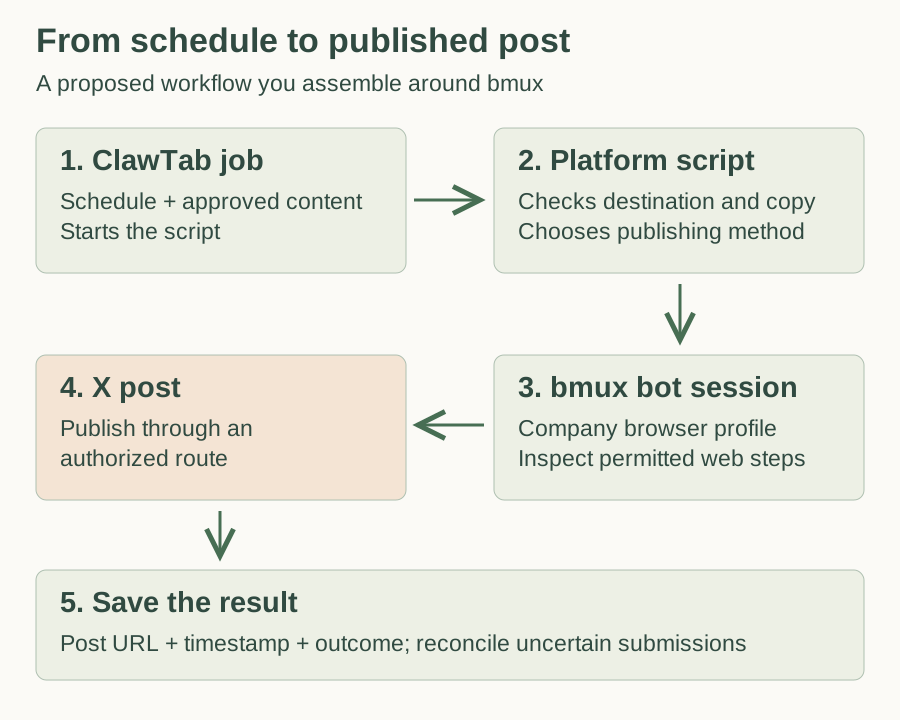 Proposed workflow, drawn from the scheduler and browser interfaces. Publishing through a website depends on that platform's rules; an approved API can handle the final step.
The diagram separates three responsibilities. The scheduler remembers the time. The script runs the repeatable steps. The browser holds the session and lets you inspect the page. Recording the resulting post URL makes completion something you can check.
| Part | Responsibility | Example |
|---|---|---|
| Content queue | Hold approved copy, media, and destination | A Markdown file per post |
| Scheduler | Start the job at the right time | A ClawTab weekday job |
| Platform script | Check the account, prepare the post, verify the result | A shell, Python, or JavaScript program |
| bmux | Keep browser profiles and expose browser actions | A background company profile |
| Run record | Prevent duplicate submissions and show outcomes | Post ID, platform, timestamp, URL, screenshot |
There is a distinction between what a browser can do and what a platform permits. X's automation rules prohibit scripting its website, and LinkedIn prohibits software that automates activity on its website. For unattended production publishing on those platforms, use an approved API or integration. The browser workflow below explains the mechanism and is suitable for permitted sites and controlled demonstrations; it does not make every social website an approved automation target.
Give the company its own browser profile
Create a background profile for company work. Profiles separate cookies and site storage. Sessions organize windows, so creating another session alone does not separate logins.
bmux profile listbmux list-sessions
# One-time setup, if these names do not already exist:bmux profile create company-social --backgroundbmux new-session -s social-publishing --profile company-socialbmux new-window -t social-publishing -n company-x --profile company-social --url https://x.com
Save the returned pane ID. Every subsequent browser action should target that pane explicitly. Sign in to the intended company account yourself, then keep that profile for company work. A separate profile per company or platform makes the intended destination easier to recognize.
For LinkedIn Pages, the signed-in identity may still be a member account with Page permissions. Moving that login into another browser profile does not remove the platform's relationship between the member and the Page.
The bmux automation guide covers DOM inspection, typing, clicking, waiting, and screenshots. For example, after replacing PANE_ID with the ID returned above:
bmux dom -t PANE_IDbmux screenshot -t PANE_ID --output /tmp/company-post-review.png --viewportDuring setup, inspect the current page before choosing selectors. Scripts should wait for the expected controls and verify the resulting page. Social sites change their composers, account menus, and upload flows, so stop on a failed check and update the script when needed.
Write one reusable script per platform
A shell, Python, or JavaScript program can call the bmux CLI directly and read its JSON responses. Once the steps are implemented, the script can handle each post without asking an AI to interpret the page again. Keep the shared queue and publishing records in one place, with a separate adapter for each platform.
For example, you could give your own scripts this command-line interface:
# Example interfaces for scripts you implement, not bundled bmux commands:./scripts/post-to-x.sh ./queue/x-launch.json./scripts/post-to-threads.sh ./queue/threads-launch.json./scripts/post-to-linkedin.sh ./queue/linkedin-launch.jsonEach input file holds the approved copy, media paths, target identity, and unique post ID. Run one script yourself for a manual post, or have a queue runner choose the due item and call the matching script. Neither approach needs an AI process.
| Example script | Platform-specific work | Publishing route |
|---|---|---|
post-to-x |
Validate the handle, text, attachments, and reply/thread intent | Approved X API integration for unattended posting |
post-to-threads |
Validate the Threads identity, text, media, and thread order | Threads publishing API with the required permissions |
post-to-linkedin |
Check member vs company Page author and the intended audience | Approved LinkedIn integration with the necessary Page access |
For implementation details, see Meta's Threads documentation and LinkedIn's Posts API. These routes require their own authentication and permissions. A browser login does not grant API access.
Each script should implement the same small contract:
Input: one approved post, its unique ID, target platform and company identity.
1. Read the post and its publishing record. Skip an already published item.2. Claim the item so another worker cannot publish it concurrently.3. Check the exact account or company Page and the approved publishing method.4. Prepare the approved text and media. Do not invent additional claims.5. Publish once, only when the job explicitly authorizes publication.6. Verify the returned post ID or URL and save it with the timestamp.7. If submission times out, mark the result uncertain. Reconcile it before retrying.8. Stop for expired login, missing permissions, or an account mismatch.
For a permitted browser publishing flow, the script opens the composer, waits for the expected controls, fills the approved copy, checks the preview, submits once, and verifies the resulting page. bmux supplies those browser actions; your code defines the success checks.
Video reference: watch DeepakNess's CogSend demo in the original X post. It shows the scheduler that inspired this article. It is a CogSend demonstration, not a recording of bmux or evidence of a tested bmux-to-X integration. X also documents the ordinary compose-and-post steps in its posting guide.
Use an agent to build the scripts, if you want
An agent can help write and maintain these scripts. Ask it once to turn a successful walkthrough into a reusable program:
Write posting scripts for X, Threads, and LinkedIn using their authorized publishing routes and bmux for permitted browser steps. Accept approved copy and media as inputs. Check the company identity, prevent duplicate submissions, and save the post URL. The scripts must run without an LLM call. Test the checks and stop on an uncertain result.
You can also save an agent skill for each platform, such as post-to-x, post-to-threads, or post-to-linkedin. Have the skill call the existing script, explain failures, and help repair it when a page changes. These are skills you create, not integrations bundled with bmux.
| Approach | When AI runs | Useful for |
|---|---|---|
| Manual script | Never, unless you used it to write the code | Publishing an approved post on demand |
| Scheduled script | No model call per run | Repeated posting from an approved queue |
| Agent with a posting skill | When explicitly invoked | Drafting, unusual cases, and script maintenance |
For a fixed posting procedure, schedule the script directly. An agent can be useful during setup or troubleshooting without babysitting every post or spending tokens on every click.
Simulate an Android browser when you need the mobile layout
bmux includes Pixel 8 and Galaxy S24 personas. Open the company profile's details, choose a device preset, and set orientation. Locale, timezone, and optional geolocation are separate settings. This lets you review a mobile web composer or check how the published page presents on a phone-sized viewport.
Android simulation here means a Chromium browser persona and viewport. It does not run the native X, Threads, or LinkedIn Android app, provide a mobile carrier connection, or reproduce all phone hardware. A mobile persona also does not make automated activity invisible.
Schedule the script with ClawTab
Once one run works, scheduling is a small additional step. ClawTab supports Binary jobs that run scripts directly. Choose that job type for the ordinary posting path. No AI provider is needed for a script that does not call one.
- Put the platform scripts, approved queue, and publishing records in a project folder.
- Write a queue runner that selects one due, unpublished item and calls its platform script.
- Create a ClawTab job with type Binary and set its path to that runner.
- Make the runner executable and use absolute paths or set its working directory explicitly. Ensure it can find
bmuxand its required runtime. - Run the job manually and check the account, resulting post, and saved record.
- Add a schedule such as
0 9 * * 1-5for weekdays at 09:00.
Check ClawTab's next-run display and the host's timezone before enabling the schedule. Its scheduling guide covers cron configuration. Keep credentials out of the script source and obtain them through your configured secret storage.
If you want an AI to draft or decide something at run time, use an agent job with the relevant skill instead. That is a separate choice; adding a schedule does not require adding AI.
Keep the machine awake, the scheduler running, and the required credentials available. Decide whether a missed run should be skipped or handled later; the queue should not publish a week's backlog unexpectedly after a restart. Cron or another job runner can launch the same script if you already have a scheduler.
Run at home, control remotely, and inspect locally
The simplest arrangement keeps ClawTab, the scripts, and bmux on your home Mac. You can inspect the browser on that machine and use ClawTab's remote interface to review job results and start a job while away. Remote job control does not require moving the browser or its cookies to another host.
You can open the local browser session explicitly:
bmux attach-session -t social-publishingWait for the script to finish or stop the job before interacting with the same pane. Save a screenshot and the post URL for each completed run: the browser shows the current page, while those records show what happened earlier.
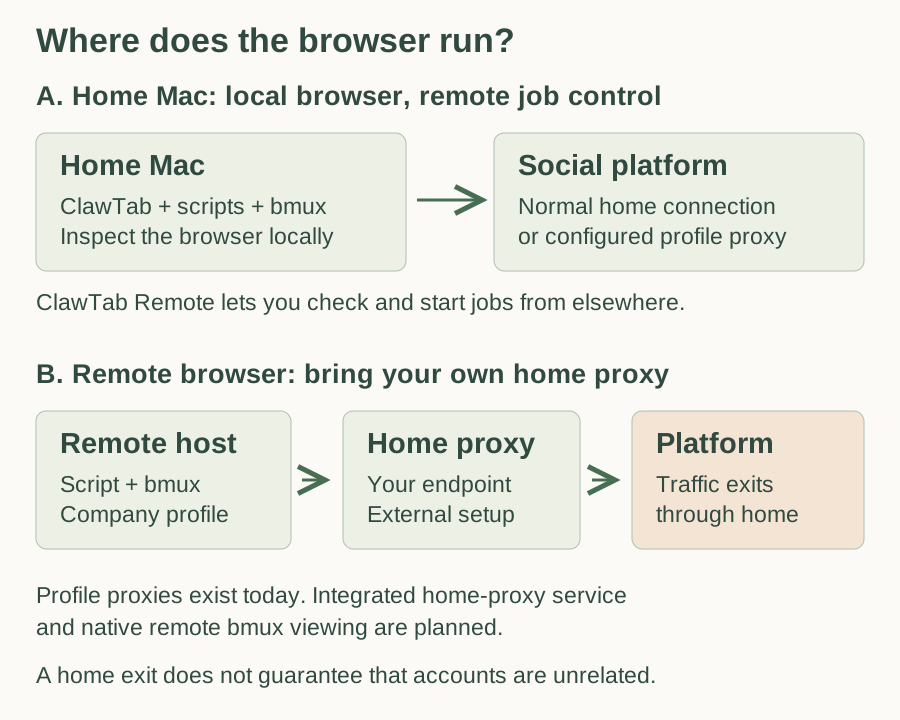 Deployment choices, not a shipped remote-browsing service. The second route requires your own remote host, networking, and home proxy. A shared home exit does not unlink accounts.
The diagram shows two different uses of a home connection. With a local browser, its normal traffic already leaves through the home's connection. With a remote browser, a separately operated home proxy can provide that route if the host can reach it securely.
bmux can use an HTTP, HTTPS, or SOCKS5 endpoint configured for a profile. The integrated home-proxy service and native remote session viewing remain planned features. Today, a remote host needs its own supported bmux installation and an external access setup. ClawTab remote terminal access is available separately; it is not a live bmux page stream.
What profile and proxy separation actually protects
A company profile helps prevent accidental use of personal cookies or the wrong login. A profile proxy gives company browser traffic a chosen network route while other profiles keep their own settings. See the per-profile proxy walkthrough for configuration and connection testing.
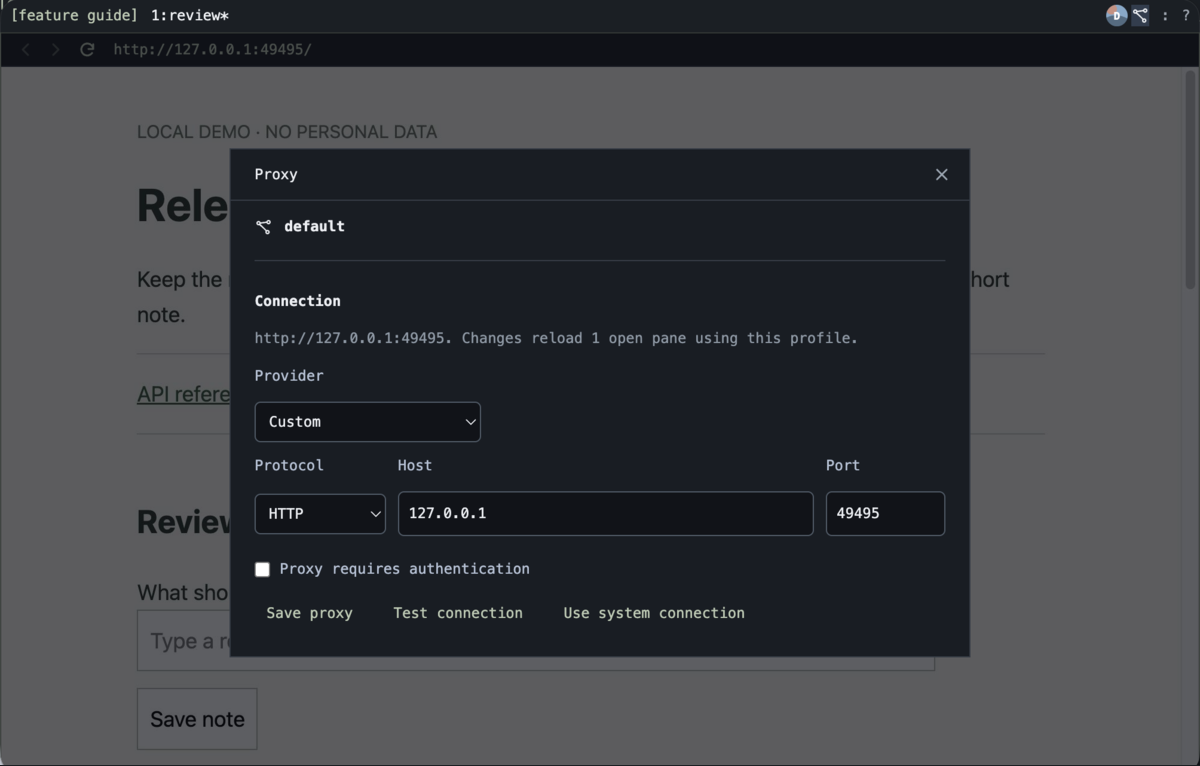 Native bmux capture from a disposable Tart VM. The endpoint is a demonstration fixture, not a verified home exit.
The panel makes the active profile and connection choice visible. Test your own endpoint before relying on it; the example above only shows the controls.
| Choice | What it separates | What it does not guarantee |
|---|---|---|
| Company browser profile | Cookies, site storage, and browser settings | That the platform cannot associate accounts |
| Company proxy endpoint | The configured profile's browser route | Protection from platform enforcement |
| Home proxy | A remote browser's exit through your home connection | A different IP from your personal browsing at home |
| Separate OS user or machine | Access to the personal browser environment | Permission to automate a platform |
Profiles are not a security boundary against a script or agent with access to the current user's bmux CLI: that CLI can operate other profiles. Use a separate OS user or machine when the automation must not have access to your personal sessions.
A proxy cannot promise that your personal LinkedIn or X account will never be associated with company activity or suspended. In particular, routing both through home can give them the same public IP. Use profiles to keep work organized, network routes for their actual connectivity purpose, and publishing methods the platform permits.
Start with one post, then add the schedule
Start with one company, one platform, and one approved post. Write its script, verify one run, and keep the post URL. Then add the ClawTab job and its schedule. Adding another destination means adding its publishing procedure to the same queue and record format.
bmux is the free browser interface in that system: separate profiles, script and agent control, mobile web simulation, and configurable connections. The scheduler supplies the timing. Once the posting script works, adding a schedule is straightforward. You can use an agent to build it, then let ordinary code publish each post without ongoing model calls.