 bmux
bmux· bmux guides
One Browser, Multiple Routes: Per-Profile Proxies in bmux
Set up per-profile HTTP, HTTPS, or SOCKS5 proxies in bmux. Understand verification, optional region presets, and mobile personas.
Walkthrough transcript
Configure a local demonstration endpoint. Save it and inspect the dedicated proxy panel. Return the profile to the system connection. This fixture does not demonstrate a regional exit or successful external verification.
Introduction
bmux can give one browser profile a proxy while another uses the system connection. All panes in the same profile share that routing choice, just as they share that profile's cookies and site storage.
Profile proxies and mobile device personas arrived on September 19. Connection verification, a dedicated proxy panel, and optional provider region lists followed. They are useful for checking a site through a particular network route while keeping your ordinary browsing in another profile.
The walkthrough uses a local demonstration endpoint in Tart. It shows configuration, the profile's proxy panel, and returning to the system connection. It does not demonstrate a real regional exit or a successful external IP verification.
Per-profile proxies vs system routing
| Choice | Scope | Useful for |
|---|---|---|
| bmux profile proxy | Browser traffic using that profile's configured connection | A separate testing or research identity |
| System proxy | Applications that use the operating system's proxy configuration | A shared system routing policy |
| VPN | Traffic covered by that VPN's routes and configuration | Network access beyond one browser profile |
Chromium's network settings documentation explains its use of system network settings and explicit proxy overrides. bmux exposes a profile-specific connection choice through its own interface.
A profile proxy is not a promise that every network packet from the application or computer follows it. It is also not an anonymity guarantee. A logged-in website can still recognize the account you intentionally use.
Configure a profile connection
Select a pane with the intended profile, then open its profile details from the status bar. Under Connection, choose Custom, select HTTP, HTTPS, or SOCKS5, and enter the host and port supplied by your proxy operator.
If the endpoint requires credentials, enable authentication and enter both the username and password. Save the proxy. Changing the connection reloads open panes that use that profile, so finish any unsaved work first.
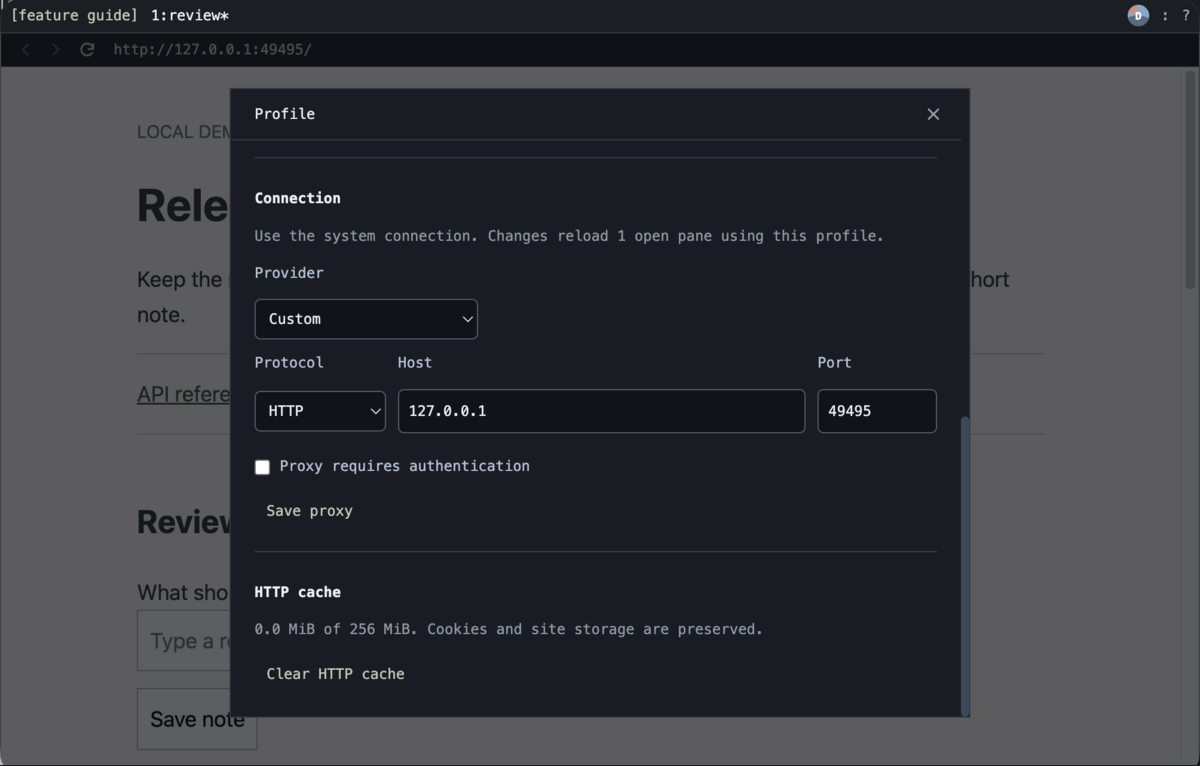 Native Tart capture of the real connection form. The loopback endpoint is for demonstration and does not provide a regional exit.
This form makes the scope visible: changes apply to the profile's open panes. Creating a second pane in the same profile does not create a second network identity. Use a separate profile when you need an independent route.
HTTP and HTTPS describe the connection to the proxy. They do not change an HTTP destination into an HTTPS website. SOCKS5 is another supported proxy protocol. bmux uses a private loopback relay for authenticated SOCKS5 because Chromium does not directly support SOCKS5 credentials.
Test the exit before relying on it
After saving a working endpoint, select Test connection. A successful test records the reported exit IP. The dedicated Proxy panel can also show the reported region. The status icon indicates a verified connection after success.
Treat that as a result from a point-in-time check. It does not prove that a commercial site's own region detection will agree, nor does it guarantee every possible traffic type follows the same route. Sites can also use account settings, language, and other signals.
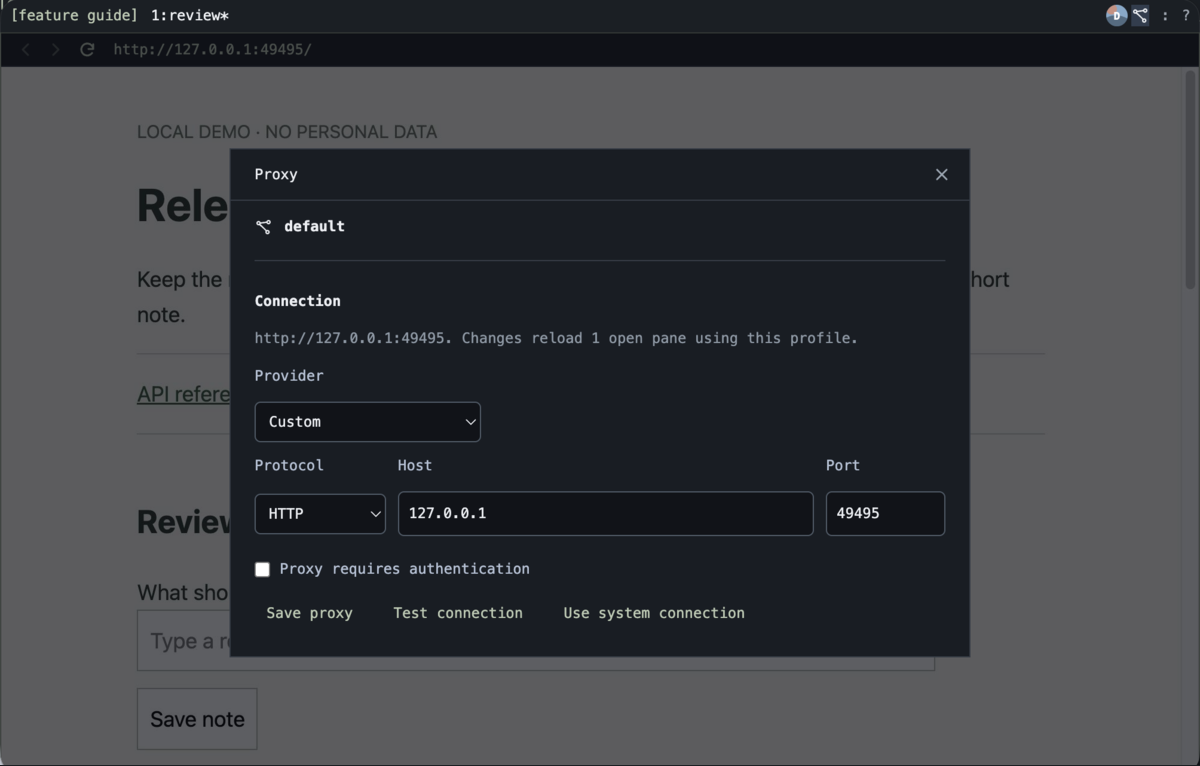 Local endpoint configuration in Tart. No verified-exit result is shown or claimed in this demonstration.
Open this panel from the profile's proxy icon when you need to inspect or change the connection. Use system connection removes the explicit profile proxy. If your operating system already uses a VPN or proxy, that system configuration can still affect the resulting route.
Use optional provider region lists
The bundled bmux.nordvpn plugin is disabled by default. Enable it in the Plugins panel to add its provider and region choices to the connection form. The plugin supplies endpoint presets; core bmux still stores credentials and manages the connection.
Choose the region and enter the provider's required service credentials. Enabling the plugin does not purchase service, create an account, or make an unavailable endpoint work. Presets should be checked against the provider's current instructions and then verified in bmux. See the provider reference and NordVPN's manual proxy instructions.
Combine a route with a mobile persona
Profile details also offer mobile device presets, orientation, locale, timezone, and optional geolocation. These settings are separate from the proxy. Choosing a mobile preset does not route traffic through a mobile carrier, and changing timezone does not select a proxy country.
Use a dedicated test profile when checking a mobile layout through a particular connection. Keep the profile name explicit, such as mobile-review, and verify the route and device settings independently.
The renderer remains Chromium even when a persona presents an iPhone-like identity. Chrome's device-mode guidance also distinguishes simulation from testing on real hardware. Use a real device when browser-engine or hardware behavior matters.
Proxy FAQ
What happens if the proxy fails at startup?
bmux verifies a configured proxy before restoring its page navigation. If connection setup or verification fails, pages using that profile are paused and a notification offers proxy settings or disabling the proxy. This startup behavior should not be described as a general system-wide VPN kill switch.
Where are credentials stored?
Credentials use the operating system's encryption through Electron safeStorage. They are kept separately from ordinary profile state. If secure storage is unavailable, saving credentials fails rather than writing them as plaintext.
Why does another pane still use the old route?
Check its profile. Panes keep their profile for their lifetime, and different profiles can have different connection settings. The profiles guide explains inheritance and how to create a pane with another profile.
Does this implement the planned home-proxy service?
No. Using a proxy endpoint in a local browser profile is separate from the planned workflow for running scrapers through your home connection. The practical benefit available now is a connection choice scoped to a browser profile.