 bmux
bmux· bmux guides
bmux Bookmarks: Quick Search and Editable Filters
Search and browse bmux bookmarks with the keyboard, return to your last position, and change website search filters from the bookmark list.
Walkthrough transcript
Save a search with Command+D. Find the saved page by title. Change its limit query parameter to 40. Open the customized bookmark.
Introduction
bmux bookmarks let you return to saved pages with the keyboard and change search filters directly from the bookmark list. Save a marketplace search once, then adjust its price range. Save an X search, then change its keywords or how recent the posts should be.
Save a search you want to use again
Open the website and set up your search. Press Command+D or run bookmark from the command prompt. Give it a clear name, such as “Used bikes” or “Browser tweets,” and choose a folder.
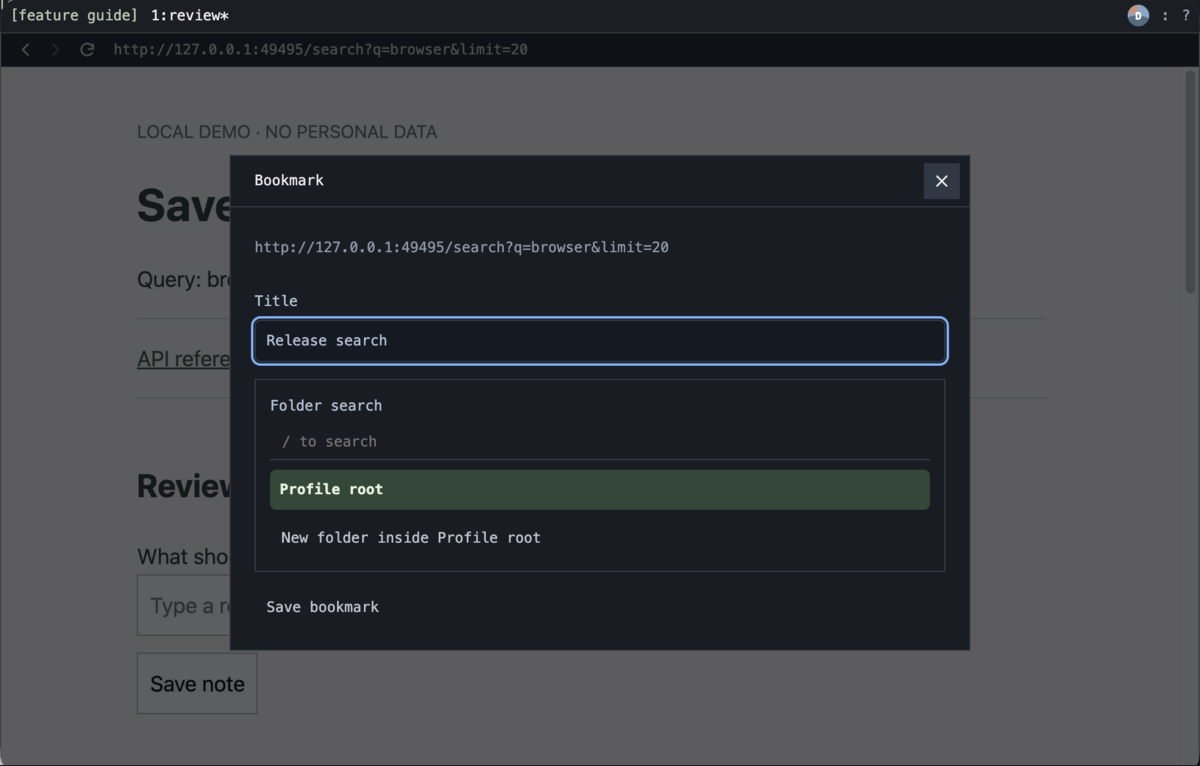 Bookmark editor captured in Tart using a local demonstration page.
Start with a search whose filters appear in the address. For example, in https://example.com/search?q=bike&min_price=100&max_price=500, the parts after ? hold the search term and price range. These are called query parameters. Each website uses its own names and supported filters.
Find and browse bookmarks with the keyboard
Run bookmarks from the command prompt, or assign the bookmarks action a shortcut in keyboard settings. Type to search by title, folder, or website address. Use Up/Down to move through the results and Enter to open a bookmark.
| Key | Action |
|---|---|
| Up / Down | Move through the list |
| Enter | Open the selected bookmark |
| / | Return to the search field and select its text |
| Escape | Close the list |
bmux remembers your search and selected bookmark for each profile during the session. Reopen the list and continue from where you left off. You can work through a set of saved pages without reaching for the mouse or starting at the top each time.
Bookmarks normally show the current profile. Enable All profiles to search across them. Each bookmark opens with the profile it belongs to.
Change filters from the bookmark list
Open the small sliders button beside a bookmark to edit its query parameters. Text values have editable fields; numbers also have sliders. Changes are saved and used the next time you open that bookmark.
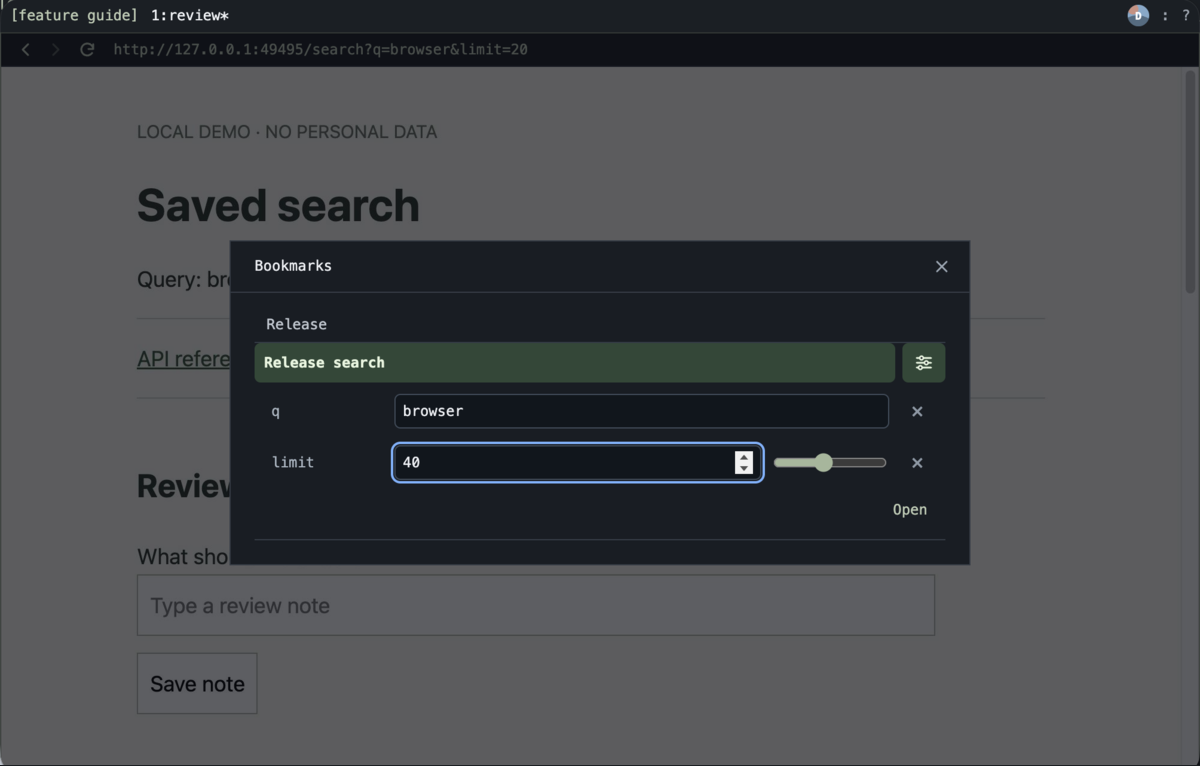 The result limit is set to 40 in bmux. This local demonstration shows the controls, not a marketplace's filters.
This makes a bookmark a small set of controls for a website you use often:
- Marketplace searches: change the item name or minimum and maximum price when the site includes those filters in its address.
- X searches: change keywords, minimum likes or replies, and the post-age slider. The age setting searches from a recent date when you open the bookmark, so you don't have to update a fixed date every day.
- Other searches: change a location, category, or result limit if the website supports it in the address.
You can keep one bookmark for a recurring task and adjust it as needed. The website must support the filters you change. bmux edits the address; it cannot add a price or date filter to a site that doesn't accept one.
Keep the list manageable
Use the + button to save the current page, or the + beside a folder to save it there. Right-click a bookmark or folder to rename or delete it. Deleting a folder also deletes its contents.
Click a folder's title or chevron to collapse it. Enable Reorder bookmarks to show drag handles, then drag items or use Option+Up/Down on a handle to move them within their folder.
For more details, including importing existing bookmarks, see the bookmark guide and Chrome import guide.